Bought a new tablet for your kids? Here's how to lock it down before handing it over
Latest from Tom's Guide ·
null
Whether you're worried about your smaller child accidentally clicking through the wrong apps, or maybe an older child that’s a little too curious for their own good, you should know how to secure their new tablet.
Here’s how to establish a safe space for your child to use your device.
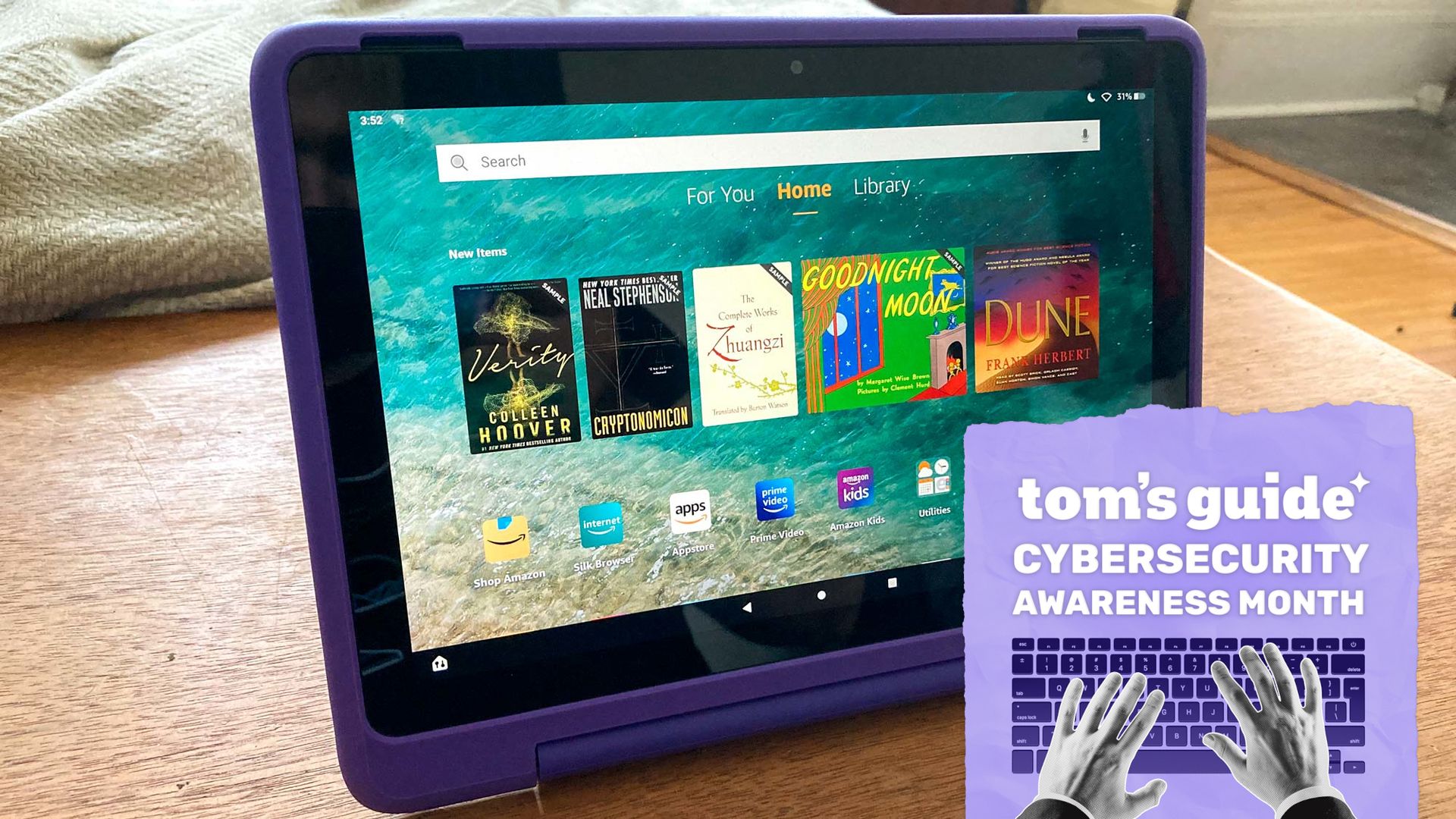
One of the simplest tablets to set up for your kids is the Amazon Fire Kids Tablet . I’ve used it for my own kid for many years, and while it does have its frustrating quirks, it does get the job done. Bear in mind this is effectively just a Fire Tablet with a colorful case, so it does include an adult profile that is necessary to set up to manage the device.
After you’ve created your profile, you’ll create an Amazon Kids Profile. It’ll guide you through a list of settings that you can customize to your child’s needs and send them on their way. In order to monitor and adjust settings on the tablet, go to the Amazon Parent Dashboard (you can do this remotely). From here you can adjust settings like time limits on apps, content filters, and even add content from an adult library. For example, I had to manually add HBO so I could put on Sesame Street .
If you do need to lock the device down for any reason, you can hit Pause or Lock Device on the Amazon Parent Dashboard. You can set a duration or set it indefinitely until the device is unlocked by you.
For an Android tablet , the first thing you’ll want to do is set up Google Family Link either through a web browser or the app itself on your own device (Android or iOS). From there you can create your child’s account, which includes creating an email address for them (weird, I know). Then when you’re actually setting up the tablet, you can sign in using your child’s email address. It’ll prompt you to sign into your own account afterward.
If your child is on the younger side (under 9), you can put them on Google Kids Space , which is tailored with content-restricted apps, books, and YouTube Kids videos. You’ll still have access to parental controls with this app.
If Google Kids Space is not for your child, or it’s unavailable for your device, you’ll be able to manage the general kids experience in Google Family Link. Here you can control app approvals and limits, set screen time limits and even set a scheduled bedtime. You can also manage how Google Chrome is used and which sites your child can visit.
Locking the device down is as simple as clicking Lock now in the Family Link app. You can use Downtime to run this on a schedule, and you can also use it to grant bonus time.
You can go to your iPad settings, select Family Sharing, Add Member, and create a child account. From there, follow the prompts until the account is created, and set a unique screen time password so your child can’t override the settings.
You can configure parental controls from your Apple device or the iPad itself. Navigate back to Family Sharing, click on your child’s name, and then select Screen Time. From here you can adjust content restrictions on apps and websites, even limiting accessible websites to one or two trusted sources. You’ll be able to set time limits and schedules for apps as well, and can also lock them into a single app with Guided Access in the Accessibility settings. Make sure to adjust the Communication settings as well to manage who they can contact.
To lock the device, you can access the parental controls remotely and turn on Downtime — this can be immediate or set on a schedule.
It’s not terribly difficult to set up a new tablet for your kids, although I know from experience that it’s not always seamless. Make sure you look over the parental controls thoroughly. It has less to do with lack of trust and more to do with safeguarding. It’s all too easy for kids to get access to something that they’re not supposed to.
I’d also be careful with YouTube Kids — I have seen some brainrot videos on there, including AI slop, that aren’t good for child development because they’re either overstimulating or not educational. I highly recommend content from established educators like Ms. Rachel. For general entertainment, you can find Blue’s Clues going strong on there, but it’s also worth downloading the PBS Kids app itself for some consistent safe content.