How to turn your smartphone into a mobile video editing suite
Popular Science ·
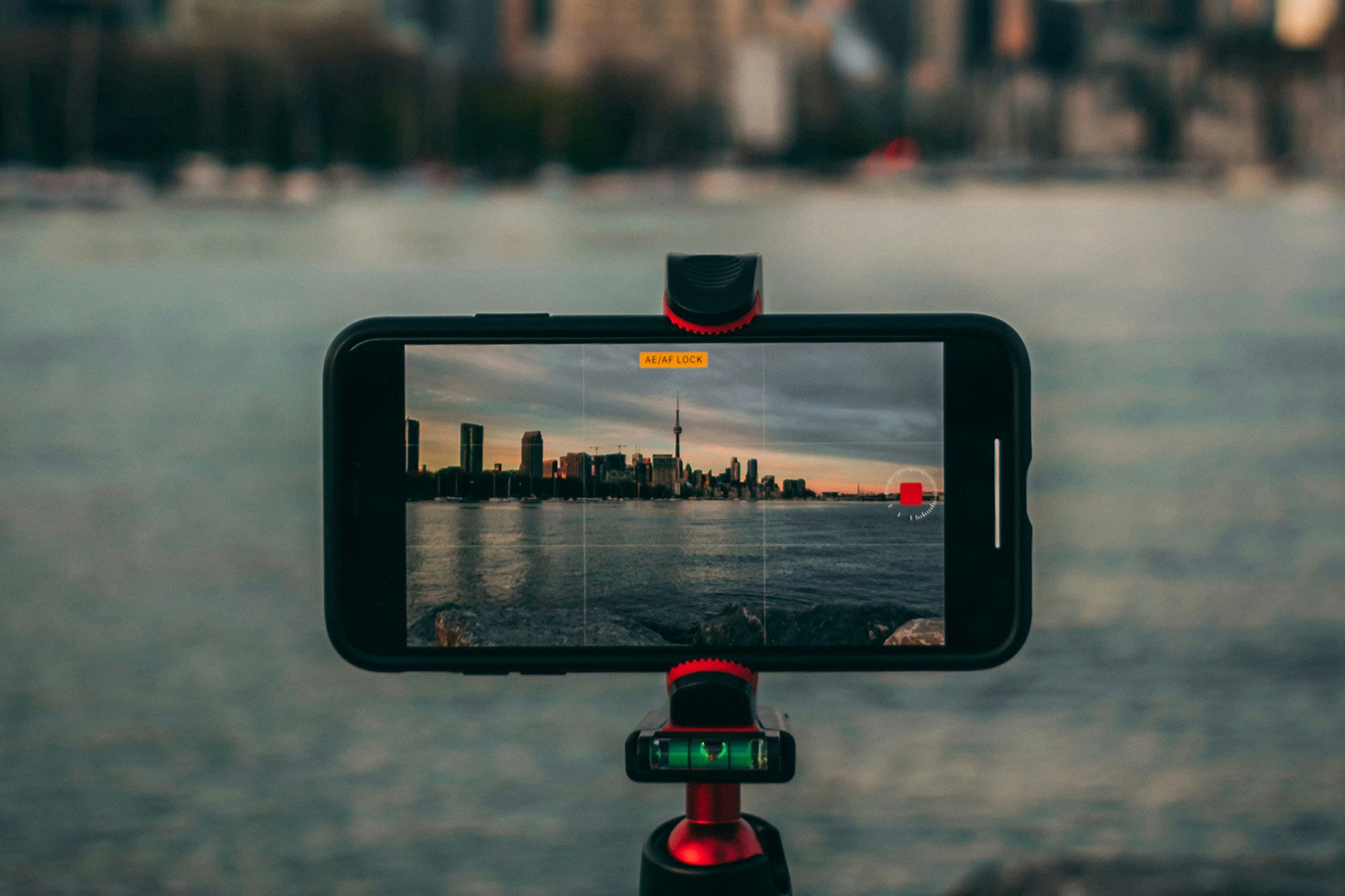
Adobe offers a free video editor for your phone—here's what it can do. The post How to turn your smartphone into a mobile video editing suite appeared first on Popular Science .
With so many smartphone apps in the modern age locked (or partially locked) behind paywalls, it’s important to grab the free ones when they become available—and on rare occasions, it’s the biggest software companies on the planet offering apps free of charge. Adobe Premiere for iOS launched back in September 2025, and a year later, we got Adobe Premiere for Android too. You don’t need an Adobe account or a subscription to use these apps (unlike the desktop equivalents)—the only paid components are credits for AI image and video generation , if you want to use those tools.
With these apps available, there’s really no excuse for sharing sub-standard video. You get a wealth of editing features right on your mobile screen, all optimized to suit the smaller display and the more limited capabilities of a phone versus a full computer.
We’re going to concentrate on the Android app here, as it’s the one most recently launched, but the features are the same on the iPhone too. You can even use Premiere across multiple Android and iOS devices.
It’s easy enough to get started with Premiere: From the main screen, tap the + (plus) button to choose a saved video clip or image to use as the starting point for a new project, or select New blank project . Either will take you to the timeline view, and you can then use the + (plus) button on the timeline to load in more content.
The layout is going to be familiar if you’ve used a video editor before. Photos and videos make up the main timeline, and if you select them, you get handles around them—use these handles to shorten or lengthen the clips. Select a video on the timeline, then tap Split to cut it in two at the current playhead position (that’s wherever the long vertical white line is in the timeline).
Your video project is previewed above the timeline, and you can use the playback controls to go backward and forward through it. The other options you’ll see on the toolbar include Audio (for dropping in a voiceover or some stock music), Text (for titles and overlays), and Generate (for producing generative AI content). You can also select Files to load local files (such as audio snippets) from your phone.
Select anything on the timeline to get more options for it. For a video clip, these will include Retime (for changing the speed of a clip or freezing it), Filters (for adjusting the look of a clip), Effects (tweaks like glows or shakes), and tools to mirror, flip, or duplicate whatever you’ve got selected. To change transitions, tap on the borders between scenes.
Then there are the generative AI tools, which you can get to by tapping on the Generate button underneath the timeline. This part of the app requires an Adobe account—the account itself is free, but you’ll be restricted in terms of your AI usage before you have to start paying for credits.
If you want a quicker, easier way to make content, there are plenty of ready-made templates to use. You’ll see these on the front screen, under headings like Lifestyle and Beauty. Tap on a template to view it, then choose Use this template to start making it your own.
Making it your own means picking images and videos from your phone’s library to add to the template you just viewed. As you make your selections, you’ll see the template slots fill up underneath (you don’t have to use all of them)—when you’re done, choose Next to see the finished product.
This will have the same transitions, timings, titles, and audio as your template, and if you’re happy with that, then tap Export to send the video somewhere else. There are some basic editing tools here as well: Select one of the images or videos you’ve dropped in, and you can trim them or replace them with the buttons at the bottom.
To customize the clip even more, choose Full editor to return to the fully featured interface we looked at above, complete with filters, effects, and everything else. Note that once you’ve converted your template-based video to work with the full timeline interface, you can’t go back into template mode with the same project.
It’s an app that works well for quick video creations and more detailed projects you want to do on your phone, and you’ll also get numerous settings (resolution, frame rate, quality) when it’s time to export your work. If you do sign up for an Adobe account and pay for the Creative Cloud suite, you can easily sync your projects with Premiere on the desktop.
The post How to turn your smartphone into a mobile video editing suite appeared first on Popular Science .