3 simple settings to tweak that make your TV picture look instantly better
Latest from Tom's Guide ·
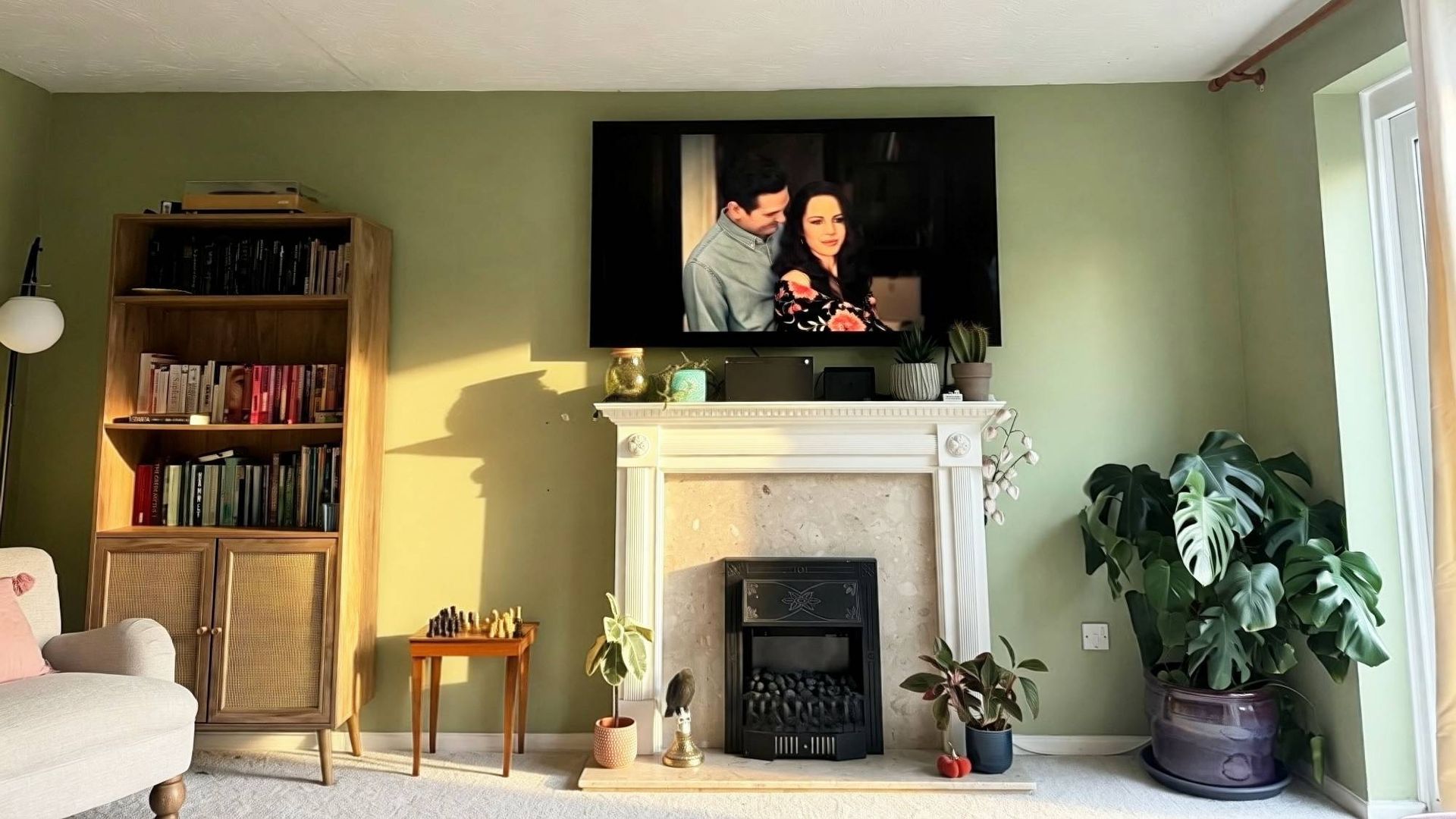
null
Between toggling game mode on and off, turning on eye comfort shields for late-night viewing, and having native apps constantly override my display choices, my TV picture was looking, frankly, terrible.
It is easy to blame a poor streaming bit rate or assume the screen is wearing out, but usually it comes down to a mess of conflicting picture settings fighting each other in the background. After resetting my display and cutting out the clutter, I realized you do not need complicated calibration tools to get things looking right again.
Adjusting three specific settings sorted the issue out straight away, bringing back proper brightness, punchy contrast, and natural color.
The first thing holding your screen back is almost certainly an aggressive power-saving mode.
Most TVs ship with these turned on by default to meet regional energy efficiency rules, and they can sabotage your picture by capping backlight output or letting an ambient light sensor dim the screen the second you lower the lights in the evening.
Head into your TV’s general or picture settings menu, track down Eco Mode or Energy Saving, and switch it off .
Disabling it immediately unleashes the panel’s actual peak brightness, making highlights pop and finally giving HDR content the visual punch it is supposed to have.
If a prestige drama or big-budget action film looks less like cinema and more like a soap opera, motion smoothing is to blame. It's often labelled under names like TruMotion, Picture Clarity, or Motionflow .
The mechanism, however, is all the same: the TV artificially inserts fake frames between the real ones to force a hyper-smooth image. While that extra fluidity has its place in live sport, the unnatural effect ruins picture quality.
Dive into your picture or clarity settings, find the motion smoothing controls, and turn them off to restore that authentic, cinematic weight to your favourite films and shows.
Out of the box, most sets default to Standard or Vivid mode, which pushes harsh, overly blue whites and neon skin tones designed to catch your eye on a brightly lit shop floor. Swapping your primary preset to Filmmaker Mode or Cinema wipes out that artificial processing with a single press of the remote.
Filmmaker Mode disables heavy edge-sharpening filters, strips out fake contrast boosts, and sets the colour temperature to an accurate, industry-standard warm balance. It may look slightly yellow at first while your eyes adjust, but skin tones, shadows, and fine details will quickly look far more natural.