Here’s my favorite watchOS 27 upgrade — and it’s one nobody is really talking about
Latest from Tom's Guide ·
Jane McGuire is Tom's Guide's Fitness Managing Editor, which means she looks after everything fitness-related — from running gear and fitness trackers to yoga mats and sports bras. An avid runner, Jane has tested and reviewed fitness products for the past five years, so she knows what to look for when finding a good running watch or a pair of shorts with pockets big enough for your smartphone, running gels, and house keys. Jane has run six marathons — the London Marathon five times, and the Berlin Marathon once -and is still on a quest to tick off all of the marathon majors. Her marathon PR is 3:30, which she ran in the New Balance Supercomp Elite V5's, but she also spends a lot of time talking about her ‘joy plan’, where she runs for happiness, not for PR’s. Previous to Tom’s Guide, Jane worked for Runner’s World, where she co-hosted the Runner’s World podcast. She also presents on a YouTube channel called the Run Testers, alongside other running-mad journalists, where they review the latest shoes, kit, and tech. Her work has also appeared in Coach, Get Sweat Go, and Women’s Health. When she's not pounding the pavements, you'll find Jane striding round the Surrey Hills, taking far too many photos of her spaniel, Toby.
I’ve had an Apple Watch on my wrist for most of a decade, and one thing Apple does really well is roll out updates that improve the day-to-day experience of wearing the watch. I’ve been using watchOS 27 for the past few weeks, and my favorite feature is one nobody is really talking about — read on to find out more.
To get the new features on your watch, make sure you’ve updated to watchOS 27. To do this, install iOS 27 on your iPhone, then download the new WatchOS to your phone, or directly onto the watch by going to General, then Software Update.
WatchOS 27 brings some new features to your Apple Watch, including Siri AI, which allows you to ask Siri questions or tell it to perform simple tasks on the Watch, like setting a timer or starting a workout. This new version is much more capable than its predecessor.
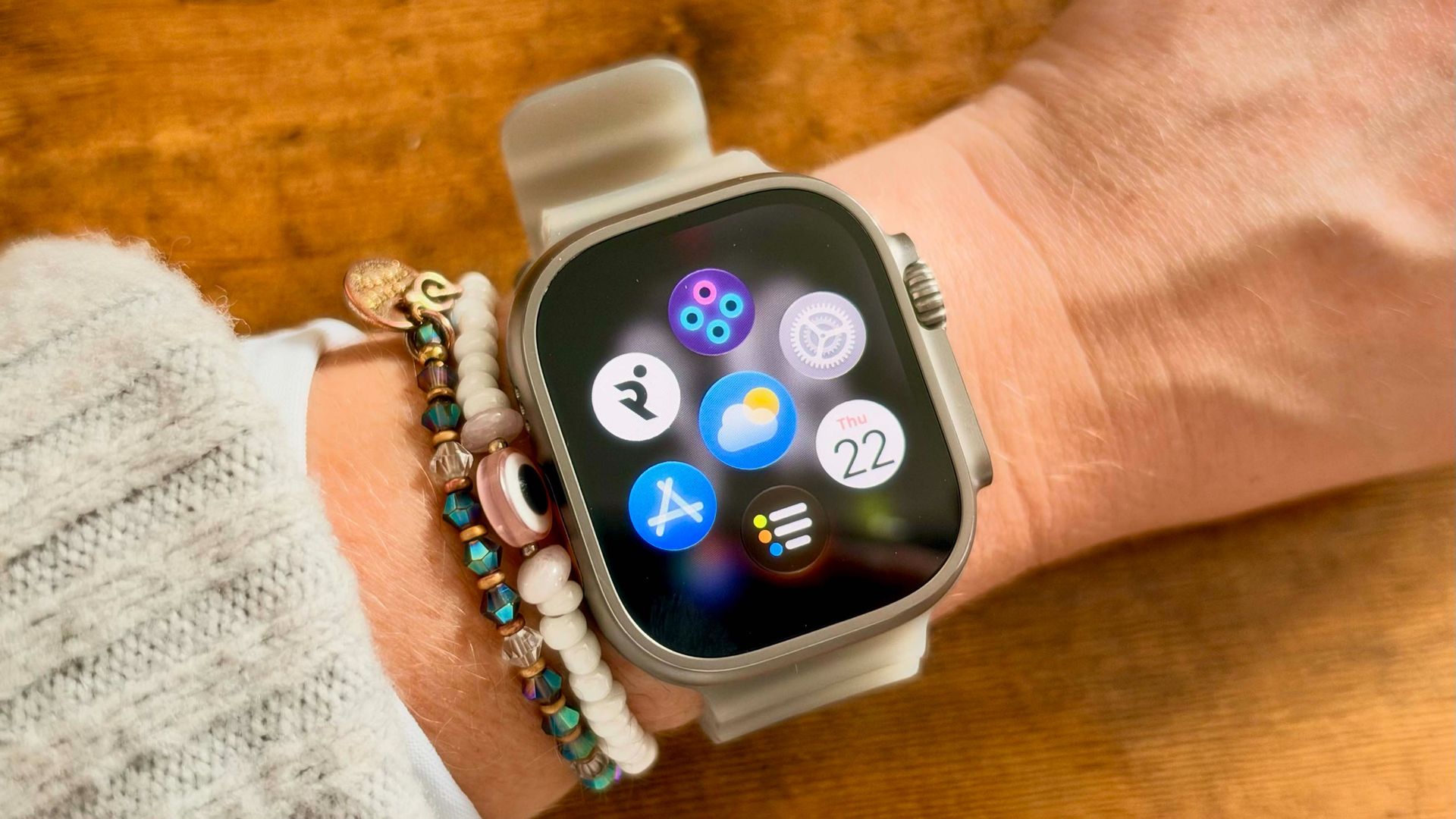
Yet, in my opinion, the best feature is the change to the dynamic app grid, which now shows your most recent apps at a glance. Apple hasn’t reinvented the wheel here, but it really is a game-changer — gone are the struggles of finding the app you need on the Apple Watch home screen grid, or scrolling through a long alphabetical list.
The dynamic app grid now shows only your five most frequently used or recently used apps, with a Siri icon in the center. Press the Digital Crown to open this grid. You can still tap the home screen to see the full list of your apps, and swipe down to return to the dynamic app grid.
This change confused me for a couple of days, but after living with it for a month, I can’t believe how much faster it made navigating my watch. I’d still really love to be able to customize the apps you can see on this grid, similar to the Smart Stack, but for now, this is definitely a watchOS 27 upgrade I’m using every day.
Talking of Smart Stack, Apple has also tweaked this slightly with watchOS 27. Apple added the ability to open the Smart Stack by double-tapping your thumb and index finger with last year’s watchOS 26, but with watchOS 27, things go a little further. You can still double-tap your fingers to open the Smart Stack and scroll down to the next widget in the stack. Once you find the widget you want, however, you can now tap once to open the widget.