Safari on Apple HomeView
WebKit ·
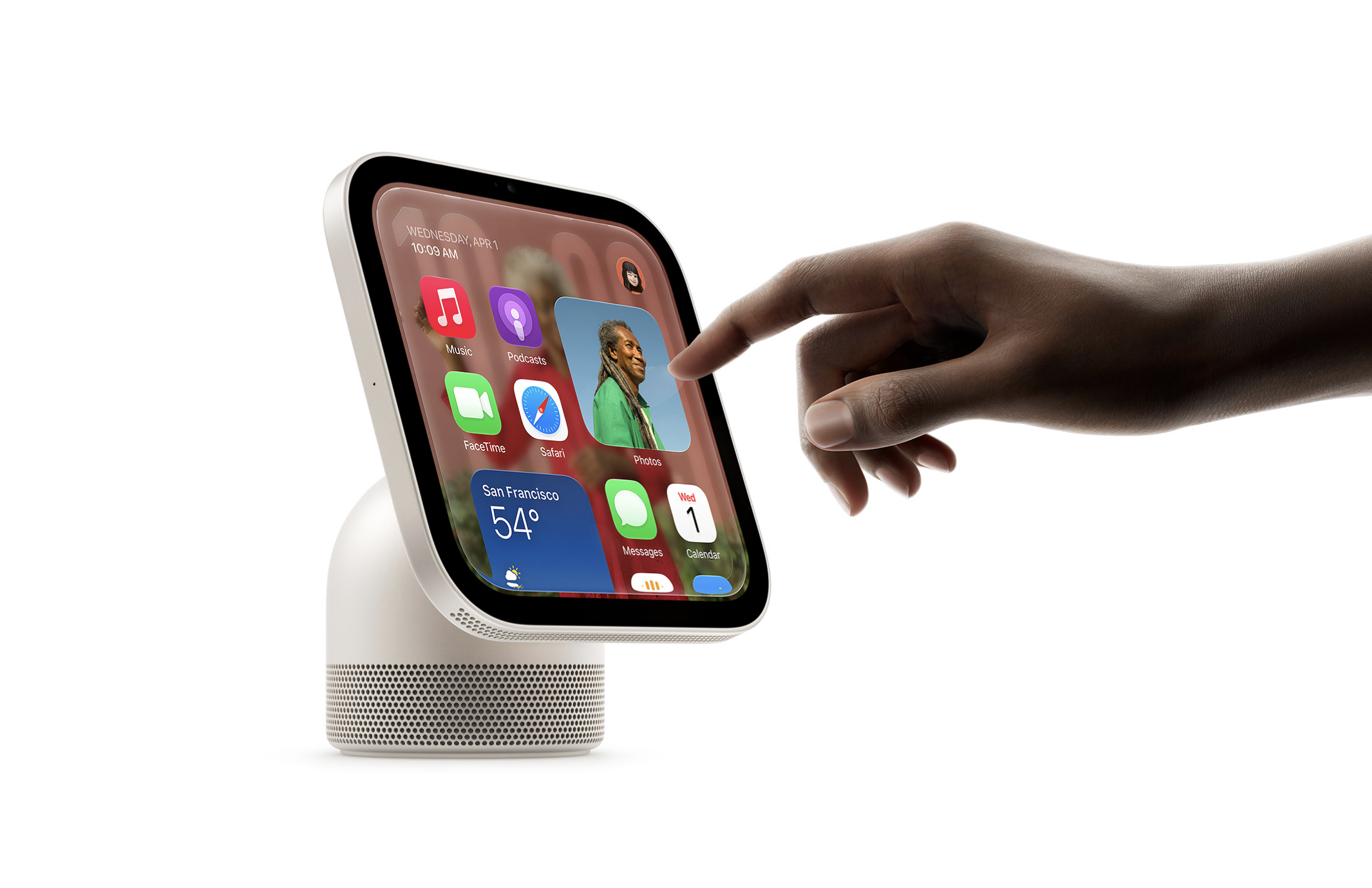
It’s not every day our browser begins a life on a whole new platform. Now, Safari also lives on Apple HomeView , joining Safari on macOS, iOS, iPadOS, and visionOS.
People interact with HomeView with their voice from across the room, or up close with a tap on the square, 7-inch display. With easy access to the web in Safari, users can quickly look something up, open a link from a friend, cook from a recipe, or much more.
As a web developer, you might be wondering “What do I need to do to support Safari on Apple HomeView?” Most likely, you don’t need to do anything. This is Safari, powered by WebKit. And the web itself is designed to work on any screen, with any kind of input.
However, there might be a few things you can do to make your site shine in Safari on HomeView.
With the new cooking experience, Safari recognizes when users are on a webpage with a recipe, and offers a streamlined view of step-by-step instructions.
Safari creates this view from recipe data in the schema.org recipe type in JSON-LD. If you have recipes on your site, and don’t yet support this schema.org type, mark up the recipe details in JSON and add it to the page.
{ "@context" : "[https://schema.org](https://schema.org/)" , "@type" : "Recipe" , "name" : "Perfect Roast Chicken" , "image" : "https://example.com/roast-chicken.jpg" , "prepTime" : "PT15M" , "cookTime" : "PT1H20M" , "recipeYield" : "4 servings" , "recipeIngredient" : [ "1 whole chicken (4–5 lb)" , "3 tbsp unsalted butter, softened" ], "recipeInstructions" : [ { "@type" : "HowToStep" , "text" : "Preheat the oven to 425°F (220°C)." }, { "@type" : "HowToStep" , "text" : "Rub the butter all over the skin." } ] } HomeView also provides rich experiences playing audio and video. To ensure great experiences with video captions, include them as WebVTT files inside track elements.
Sites built on modern best practices work well on HomeView. Sites that hard-code assumptions about what a device is or how people use it can break when a new device arrives. A few of those assumptions are worth checking.
Sometimes sites assume every user clicks or taps, when many people use other input methods instead. On HomeView, voice is a key part of how people use the device. Someone speaking to a page isn’t pointing at a button. They are calling its name. Semantic HTML makes that work, with real buttons, links, and form fields, and a clear label on every control. Accessible content, large tap targets, and flexible layouts help everyone use your site, whether they speak, touch, or both.
Some sites assume an iOS user agent means the device is an iPhone. Yet, Safari on HomeView also reports an iOS user agent. User agent sniffing can result in unintended consequences as technology evolves, so it’s best to avoid it.
You’ll end up with a far more robust website, prepared for whatever the future brings.
Some sites assume a screen is either landscape or portrait, and never square. Some sites assume the viewport is always taller than 600px, while on HomeView it’s shorter. Such assumptions can cause layout problems. Sticky or fixed-position headers and footers might leave almost no room for the main content on a short screen. Modals (newsletter signups, etc.) taller than the viewport might leave users with no way to dismiss them. One quick fix for such modals is layout code like this:
.modal { max-height : 90s vh ; overflow-y : auto ; } If you don’t have HomeView handy, test your site on a phone in landscape orientation, and solve any problems that emerge due to the short height. You can also use Responsive Design Mode in Safari, and set the viewport to 448×364.
Most likely, your website already works great in Safari on HomeView — sitting on someone’s kitchen counter or hung on the wall in their hallway. That’s the promise of the web. Leverage modern best practices to build robust, flexible websites — and your work will reach people in places you might not have imagined.