How to avoid the iPhone’s notorious ‘silent alarm’ bug
Popular Science ·
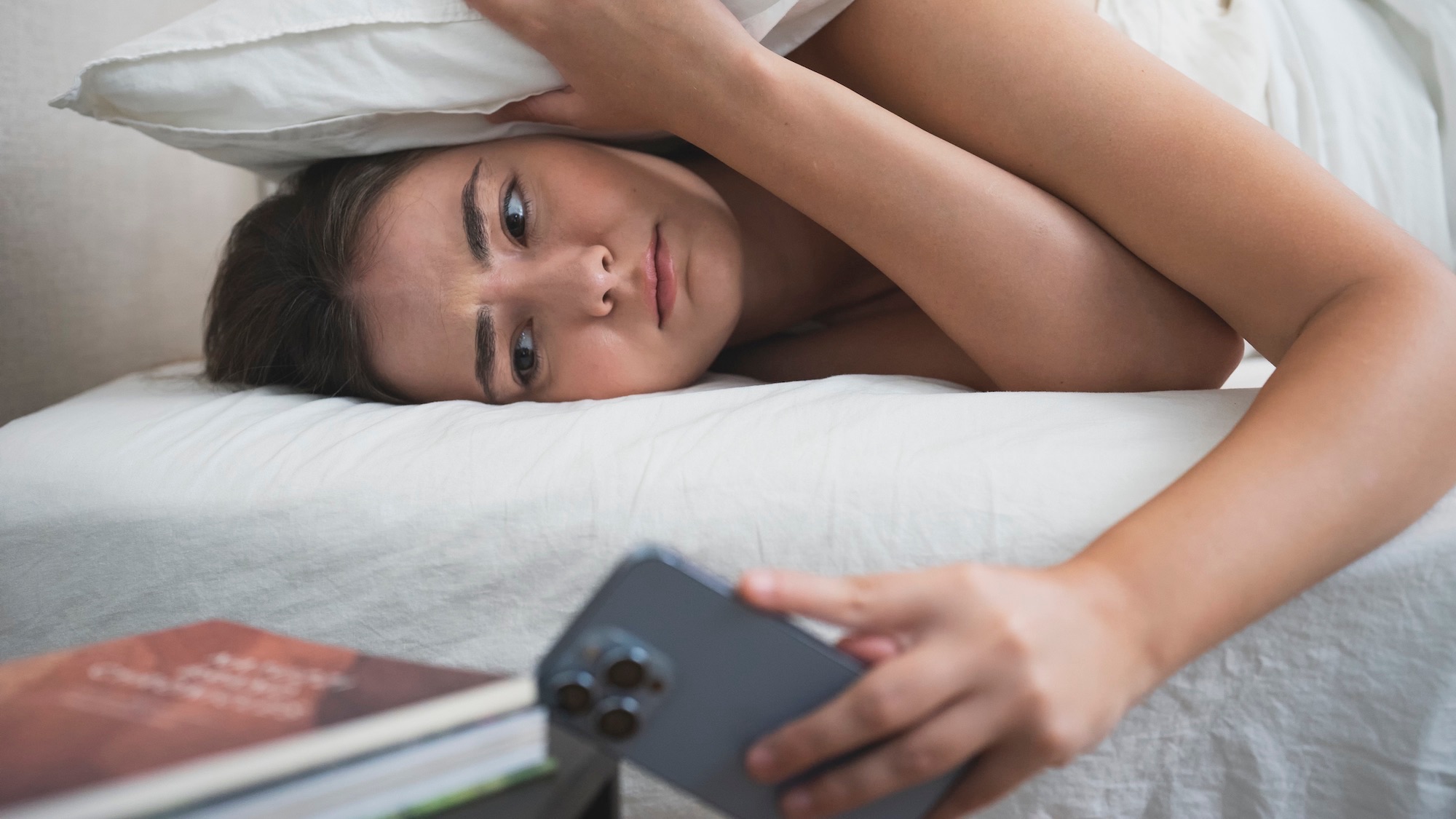
Slept in too long? A silent alarm may be to blame. The post How to avoid the iPhone’s notorious ‘silent alarm’ bug appeared first on Popular Science .
You might’ve seen recent reports of users complaining that they’ve slept through alarms set on their iPhones–or even encountered it yourself. But it’s not a new bug. The silent iPhone alarm issue has plagued users for at least a couple of years, and still keeps affecting people (even though Apple has previously promised to fix it ).
The bug causes alarms to go off, but silently—there’s no audible ring, and no vibration. That’s not ideal if you need to get up for work, a flight, or anything else you have to do. So what exactly is going on? Here’s what we know about the so-called silent alarm bug on the iPhone and what you can do about it.
You can rule out Silent mode and Do Not Disturb. According to Apple , your alarm still sounds when either one is turned on.
If you set an alarm, it’s important that it actually alerts you at the right time. But these silent alarms that users have been noticing on their iPhones don’t make any sound and don’t trigger any vibrations. They do appear on screen as normal, but they’re completely silent.
As for what’s causing it, no one seems certain. Back in 2024, Apple said it was fixing the issue, without going into much detail about what was behind it—but users are finding that it’s still happening . Sometimes it seems that a particular iOS version will patch the problem, only for it to show up again in a subsequent version.
Given that it’s been happening for a long time, and affecting a substantial number of users (but not everyone), it’s possible that there are multiple causes. Apple hasn’t explained what’s behind it, but its alarm support page lists troubleshooting steps, and there are other things you can do to minimize the likelihood of silent alarms.
First, make sure your alarms are set as intended from the Alarms tab of the Clock app. Tap on an alarm and you can check the Sound option to see the noise it triggers and the Repeat option to check the frequency—it may be that your alarm is set to go off some days and not others. If a specific alarm isn’t ringing, try deleting it and creating it again.
You can get to the audio settings for your iPhone by opening up Settings, then choosing Sounds & Haptics . Look at the volume slider under Ringtone and Alerts to make sure it’s high enough. You might also want to turn off Change with Buttons to make sure you’re not adjusting the alert volume accidentally. Alarms aren’t affected by the Silent Mode toggle or the Ring/Silent switch, so you don’t need to change either one.
Connected headphones aren’t likely to be the culprit, either. Apple says that if wired or wireless headphones are connected, your alarm plays through the iPhone’s built-in speakers as well as the headphones.
Some users have found they can overcome the silent alarm bug by turning off the Attention-Aware Features toggle switch, which you’ll find under Face ID & Passcode in Settings. This changes certain iPhone behaviors, including the level of alarm sounds, if it thinks you’re looking at the screen. It could explain certain silent alarms—though it should only ever lower the alarm volume level, not mute it completely.
If your alarm makes a sound but doesn’t vibrate, check whether your iPhone was in StandBy, the full-screen clock view that appears when the phone is charging on its side. Apple turns off alarm haptics in StandBy, so you’ll only get the sound.
Do Not Disturb and any other modes you’ve set up in Focus in Settings don’t silence alarms either. They control notifications from apps and people, so they’re unlikely to be behind the problem.
Apple also warns that manually changing the time on your iPhone (a trick some people use to skip game timers) can affect alarms. Leave Set Automatically turned on under General > Date & Time in Settings.
Finally, be sure to keep your iPhone up to date with the latest version of iOS. While it seems as though this bug is persisting in the latest software releases, hopefully at some point Apple will squash it for good, and when that happens you’re going to want to get the update as soon as possible.
Not every missed alarm is the silent bug. When iOS 26 launched, Apple redesigned the alarm screen with large Stop and Snooze buttons sitting close together, which made it easy to stop an alarm when you meant to snooze it. In iOS 26.1, Apple replaced the Stop button with a Slide to stop gesture, while Snooze is still a single tap.
If your alarms are ringing but you keep switching them off half-asleep, open Settings and go to Accessibility > Touch . If Prefer Single-Touch Actions is turned on, your iPhone swaps the slider back for a one-tap Stop button. Turn it off to get the slider back. The setting changes other sliders across iOS too, not just alarms.
Something else you can do to try and avoid silent alarms is to install a third-party alarm app, and there are lots to choose from. Alarmy actually prides itself on the loudness of its alarm alerts, so you should have no problems waking up. You can get some extra premium features and remove the ads by paying $4.99 a month, but the basic functionality is free.
Then there’s Galarm , which packs alarms and reminders into one app, with a host of options available. You can categorize alarms and add notes to them, for example, and go into plenty of detail when it comes to when alarms should repeat. Again, you can opt to subscribe for more features and an ad-free experience, which costs $0.99 a month.
Sleep Cycle is another app worth considering. Not only will it wake you up, it also has a smart alarm feature that aims to rouse you at the most beneficial time in your sleep cycle (within a preset window). It’ll track your sleep too—there’s a lot to it. You get the basics for free, with a pile of premium features (including weather reports and more sleep stats) available for a $2.99-per-month subscription.
Or you can invest in a smart alarm clock . Or just an old-fashioned alarm clock with the big red numbers and real buttons.
The post How to avoid the iPhone’s notorious ‘silent alarm’ bug appeared first on Popular Science .